Get paid by card with iKhokha
Shelfie sends your customers’ card payments straight into your own iKhokha account, and takes no cut. To switch it on you need an iKhokha account and two keys from it. Here’s how, from the start.
Checked against iKhokha's own pages on 30 October 2026.
Before you start, have these ready
- Your South African ID number. No SA ID? See step 1.
- A phone with a camera, for a quick face scan. Sometimes iKhokha also asks for a photo of your ID card or book.
- Your business address. If you sell from home or at markets, your home address is fine.
- A bank account in your business's name. iKhokha pays your card sales into it.
- Which kind of business you are: a sole proprietor (one owner, not registered with CIPC), a (Pty) Ltd, a CC, a partnership, a trust, or a club, church, school or stokvel.
The owner should sign up, not someone else: iKhokha says that makes its checks quicker.
1. Create your iKhokha account
Enter your email address and cellphone number, choose a password and accept iKhokha's terms. Then press Get started and fill in the four cards: your business details, your identity (ID number and face scan), your home address, and your bank details.
Create an iKhokha accountNo South African ID? After signing up, email onboarding@ikhokha.com from the same email address with a selfie of you holding your passport, a copy of your passport, and a copy of your permit (residence, work, study, asylum seeker or spousal).
2. Wait for iKhokha to approve you
iKhokha checks who you are, as the law (FICA) requires. They email you when you're approved, or if they need anything else. You can also sign in to the iK Dashboard to see where it stands.
While you wait, Shelfie still takes your orders. Customers can pay you by EFT or when they collect: add your bank details in Settings → Payments.
3. Copy your two keys into Shelfie
- Open Settings → Payments in Shelfie, and sign in to the iK Dashboard at dashboard.ikhokha.com in another tab. On a phone, open the iK Dashboard menu first.
-
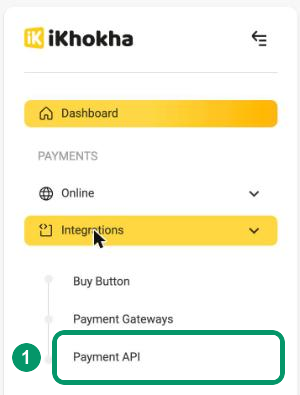
In the iK Dashboard menu, open Integrations and choose Payment API (1).
-
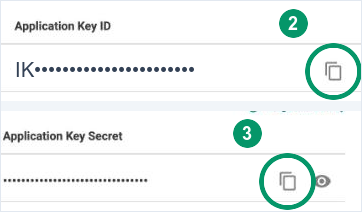
Under Your secure key, press the copy button next to Application Key ID (2)
and paste it into Shelfie's first box. Then copy the Application Key Secret (3) and paste it
into the second box. The secret stays hidden, but the copy button copies it anyway.
- Press Save iKhokha keys, then Test connection. When Shelfie shows Card payments on, customers can pay you by card.
No key on that page yet? Create one first. Already have one? Don't press Regenerate Key: it replaces your key, and card payments stop until you paste the new one into Shelfie.
Can't see Payment API? iKhokha switches online payments on once it has approved your account.
What it costs
iKhokha charges a fee on each card payment: see iKhokha's fees. Shelfie takes nothing from your sales.
Stuck?
For your iKhokha account, call iKhokha on 087 222 7000 or email support@ikhokha.com. For Shelfie, email info@shelfie.co.za.
New to Shelfie? Start your free trial.